
Using CapCut for Language Tutorial Videos
CapCut has gained popularity as an intuitive and feature-rich editing tool, making it an excellent choice for crafting educational videos. Using CapCut for language tutorial videos can elevate the learning experience by enhancing clarity, engagement, and accessibility. Quality editing plays a significant role in keeping students focused and making lessons easy to follow. Stay updated with the latest CapCut mod APK version to access new editing features and enhancements. Keep your video editing skills ahead of the curve.
Why Choose CapCut for Language Tutorials?
User-Friendly Interface for Beginners
CapCut provides an intuitive interface, making it accessible for educators and content creators without extensive video editing experience. Simple drag-and-drop functionality allows users to edit videos efficiently.
Availability of Advanced Editing Features
Despite its ease of use, CapCut offers a suite of professional editing tools such as transitions, animations, and text overlays that can enhance the quality of educational videos.
Free and Accessible for Everyone
Unlike many paid editing tools, CapCut is free to use, making it an excellent option for educators, language coaches, and content creators looking to produce high-quality tutorials without budget constraints.
Setting Up CapCut for Your Tutorials
Installing CapCut on Your Device
CapCut is available for both mobile and desktop platforms. Download the app, install it, and start creating without complex setup processes.
Exploring the Basic Tools You’ll Need
Before starting your first project, familiarize yourself with essential tools like the timeline, text editor, and audio settings. These tools will be fundamental in crafting practical language tutorials.
Creating Engaging Language Tutorial Videos with CapCut
Adding Text and Subtitles for Better Learning
Subtitles are essential for language tutorials. To add subtitles in CapCut:
- Tap on the text tool and choose “Add Text.”
- Type in your subtitles and position them for readability.
- Customize fonts, colors, and effects to ensure clarity.
Using Voiceovers to Enhance Pronunciation Guides
To record a voiceover:
- Click on “Audio” and select “Record.”
- Speak clearly and adjust volume settings.
- Trim and synchronize the voiceover with visuals for accuracy.
Implementing Motion Graphics for Interactive Learning
Animations and transitions help keep learners engaged. You can highlight key phrases using effects such as zoom-in or color emphasis.
Enhancing Language Tutorials with CapCut Features
Using AI-Powered Auto-Captions for Accuracy
CapCut’s AI captioning tool can automatically generate subtitles, making providing translations and transcriptions easier.
Applying Green Screen Effects for Professional Backgrounds
Using the chroma key feature, you can replace backgrounds with visuals related to your lessons, such as cultural landmarks or vocabulary flashcards.
Adding Background Music to Keep Learners Engaged
A soft instrumental background can enhance concentration. Choose a neutral, non-distracting tune that complements your tutorial.
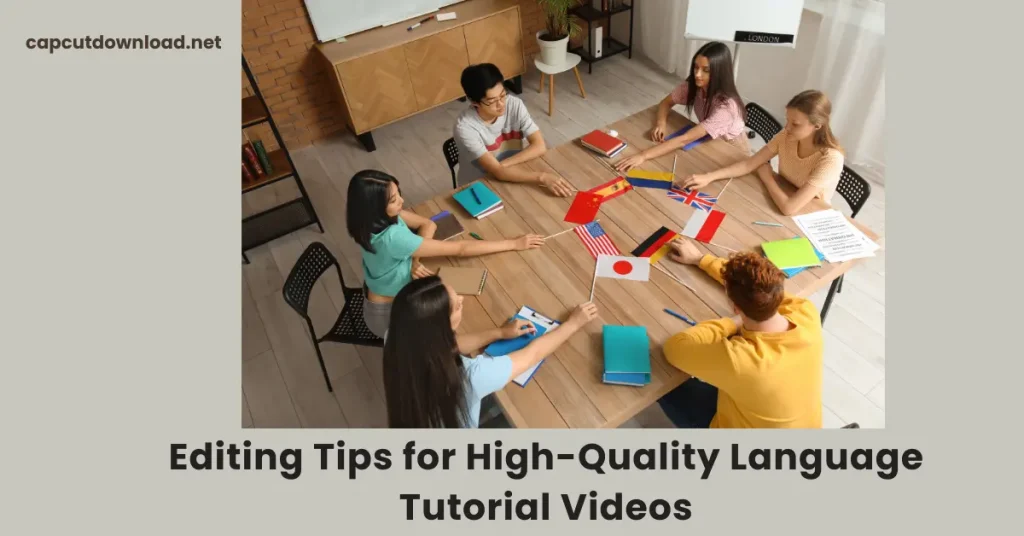
Editing Tips for High-Quality Language Tutorial Videos
Keeping the Video Flow Smooth and Engaging
Cut unnecessary pauses and use seamless transitions between segments to maintain viewer attention.
Adjusting Video Speed for Better Comprehension
Speed adjustments allow you to slow down complex pronunciations or speed up repetitive sections.
Exporting in the Best Quality for Various Platforms
To ensure your video looks professional, export it in 1080p or higher resolution. CapCut provides presets for different social media platforms.
Uploading and Promoting Your Language Tutorials
Best Platforms for Sharing Your Content
Consider uploading your tutorials to YouTube, TikTok, and Instagram for maximum reach. These platforms cater to visual learners and encourage interaction.
SEO Tips for Reaching a Larger Audience
Use keywords in your titles, descriptions, and tags to increase visibility. Engaging thumbnails and compelling descriptions will also improve click-through rates.
Conclusion
CapCut serves as a fantastic tool for producing high-quality language tutorial videos. By leveraging its features, educators and content creators can craft engaging, accessible, and visually appealing lessons that captivate their audience. Whether you’re teaching pronunciation, grammar, or conversational skills, CapCut provides all the necessary tools to make your content shine.
Read our blog: How to Make CapCut Edits for Food Bloggers?
Using CapCut for Language Tutorial Videos FAQs
1. How can I add subtitles to my CapCut language tutorial videos?
You can manually add subtitles using the text tool or the auto-captioning feature for automatic transcriptions.
2. What is the best format for exporting my videos?
For best quality, export your videos in 1080p or higher with an MP4 format to maintain clarity across platforms.
3. Can I use CapCut on both PC and mobile devices?
CapCut is available for both mobile and desktop, providing flexibility in editing.
4. Is CapCut free to use for educational content?
CapCut offers free editing features, making it accessible for educators and content creators.
5. How do I make my videos stand out on social media?
Use engaging thumbnails, add captions, and optimize descriptions with relevant keywords to attract a larger audience.


